 Overlay Pen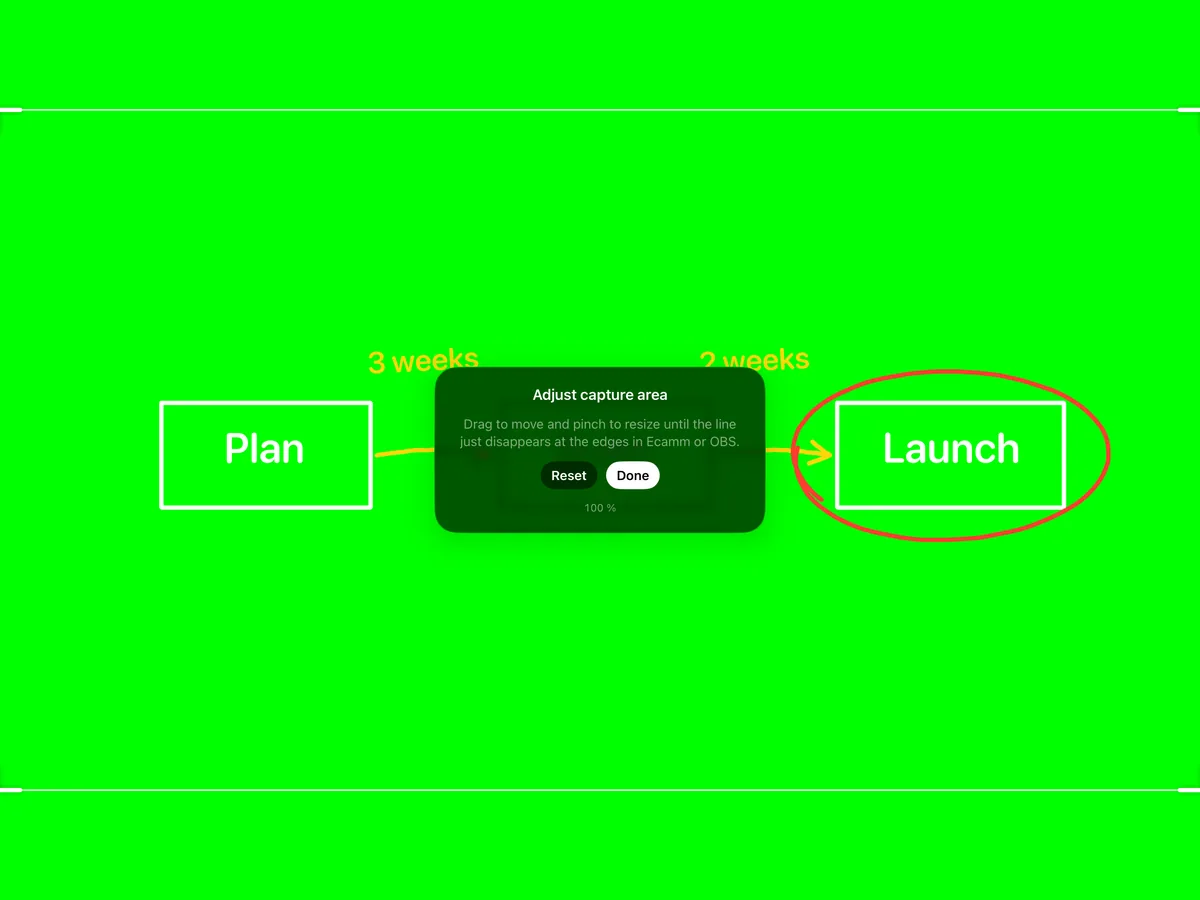
Wireless Browser Source (Mac, Windows, Linux)
- Put the iPad and the computer on the same network.
- In Overlay Pen, open Settings and turn on Web overlay (no cables). Note the address.
- In OBS, choose Sources → + → Browser.
- Paste the address and set width 1920 and height 1080 (or your canvas size).
- Drag the source to the top of the source list, so the drawing sits above everything else.
- Turn on Mark 16:9 capture area in Overlay Pen, so the board fills the picture exactly.
USB capture with Chroma Key (Mac)
- Connect the iPad with a cable, unlock it and tap Trust.
- Open Overlay Pen with the green background and turn on Mark 16:9 capture area.
- In OBS, choose Sources → + → Video Capture Device and pick the iPad at its highest resolution. Not listed? Open QuickTime Player → New Movie Recording, choose the iPad once, then try again.
- Right-click the source → Filters → + → Chroma Key, key colour Green. Start around Similarity 400, Smoothness 80 and Spill Reduction 100.
- Crop the source so the marker line falls just outside, or use Adjust capture area in Overlay Pen.
Tips
Click Start Virtual Camera in OBS and choose OBS Virtual Camera in Zoom, Teams or Meet to take the drawing into a meeting.
Never stretch the source unevenly. That changes the proportions of your drawing.
Other guides: Ecamm Live · Zoom, Teams & Meet · HDMI & capture cards