 Overlay Pen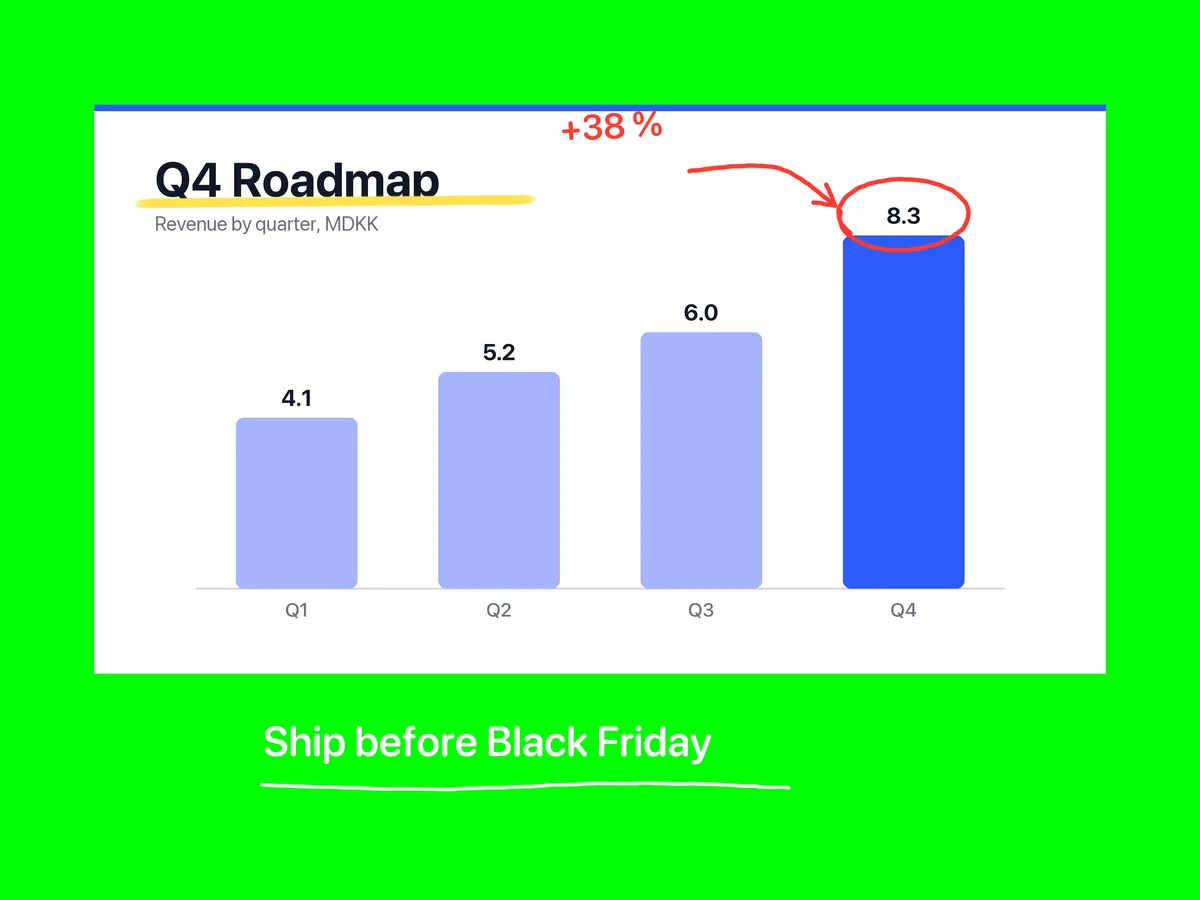
Connect
- Connect the iPad to a USB‑C Digital AV Adapter (or Lightning Digital AV Adapter), and from there by HDMI to a capture card, projector or switcher.
- Overlay Pen takes over the external display with a clean picture without the palette at the highest resolution the display offers. The palette stays on the iPad.
- Turn on Mark 16:9 capture area. The board then fills the HDMI picture exactly.
Key it
- In OBS, add the capture card as a Video Capture Device and add a Chroma Key filter (green).
- On a hardware switcher, use its chroma or luma keyer on the HDMI input.
Tips
On iPads with Stage Manager, iPadOS may treat the display as an extended desktop. Choose mirroring in Control Center if Overlay Pen does not take over the display.
Choose the Blue background if you want to draw in green.
Other guides: Ecamm Live · OBS Studio · Zoom, Teams & Meet