 Overlay Pen
Write on your live video.
Overlay Pen turns your iPad and Apple Pencil into a pen for meetings, webinars and live streams. Wireless, sharp up to 4K, and you always see exactly where you draw.
- No cables
- No green screen
- No account
- Set up in two minutes
What is Overlay Pen?
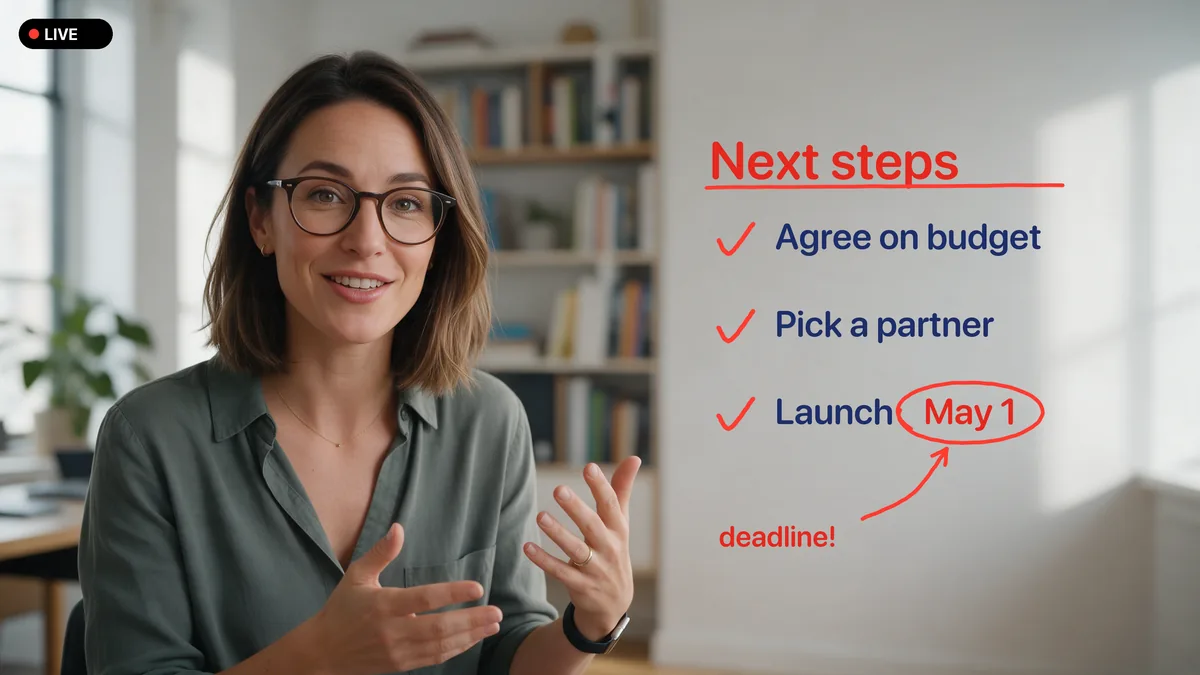
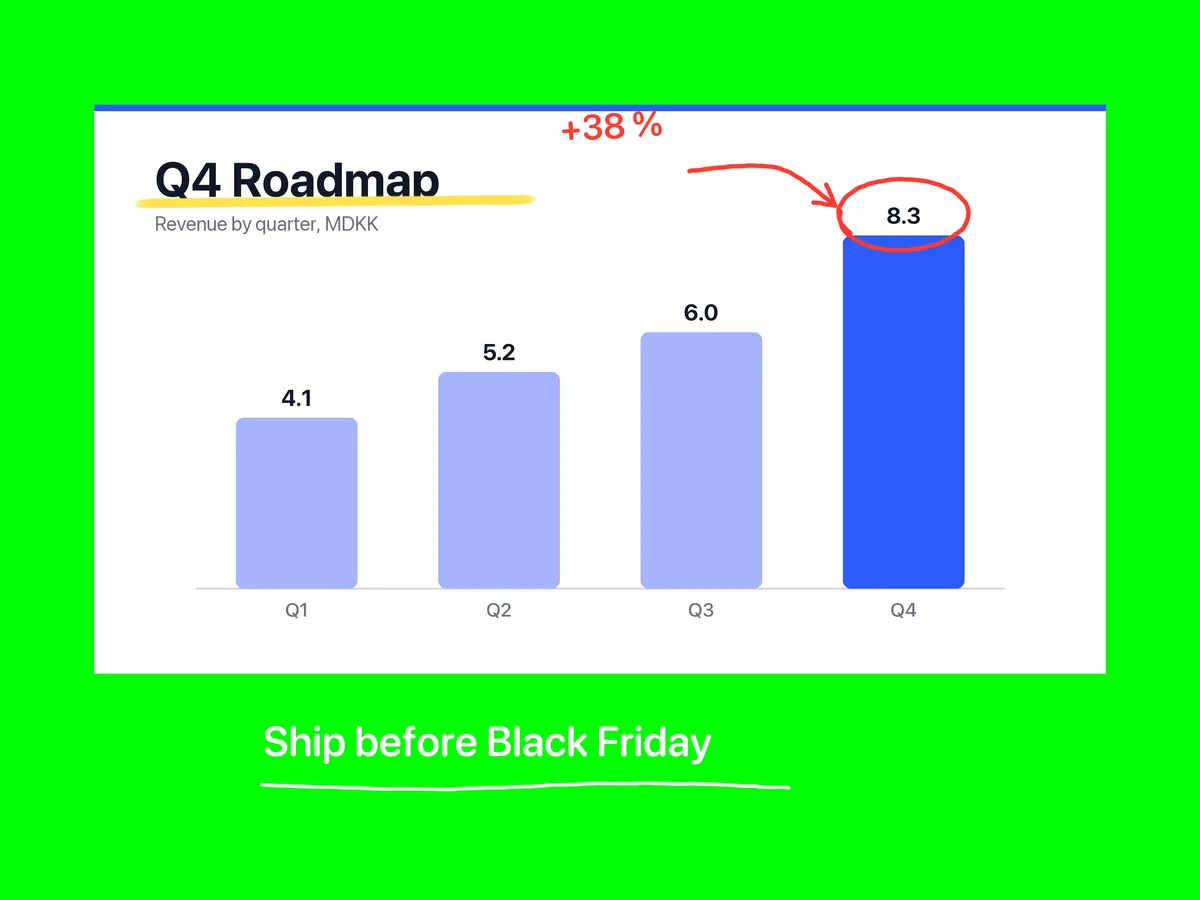
Overlay Pen is an iPad app that adds a live drawing layer to your video. You draw with Apple Pencil on the iPad; the ink appears on top of your camera, slides or screen share in Ecamm Live and OBS Studio, and through their virtual camera in Zoom, Microsoft Teams and Google Meet.
It is made for people who explain things on video: presenters, teachers, coaches, consultants and streamers.
- Works on
- iPad with iPadOS 17 or later, Apple Pencil
- Works with
- Ecamm Live, OBS Studio; Zoom, Teams, Meet via virtual camera; HDMI
- Connection
- Wi‑Fi web overlay, USB with green screen, or HDMI
- Quality
- Rendered for your output, up to 4K
- Privacy
- No account, no tracking, no cloud
Works with the tools you already use
* Through the virtual camera in Ecamm Live or OBS Studio.
Plug in. Draw. That's it.
Most drawing tools for video ask you to learn a studio. Overlay Pen asks you to pick up a pen.
No cables. Just Wi‑Fi.
Turn on the web overlay, paste one address into Ecamm Live or OBS, and your drawing arrives with real transparency. No green screen to light, no capture card, nothing to install on the computer.
- Real transparency, no colour fringe
- Rendered for your stream: 720p, 1080p or 4K
- Scan the QR code instead of typing
See exactly where you draw.
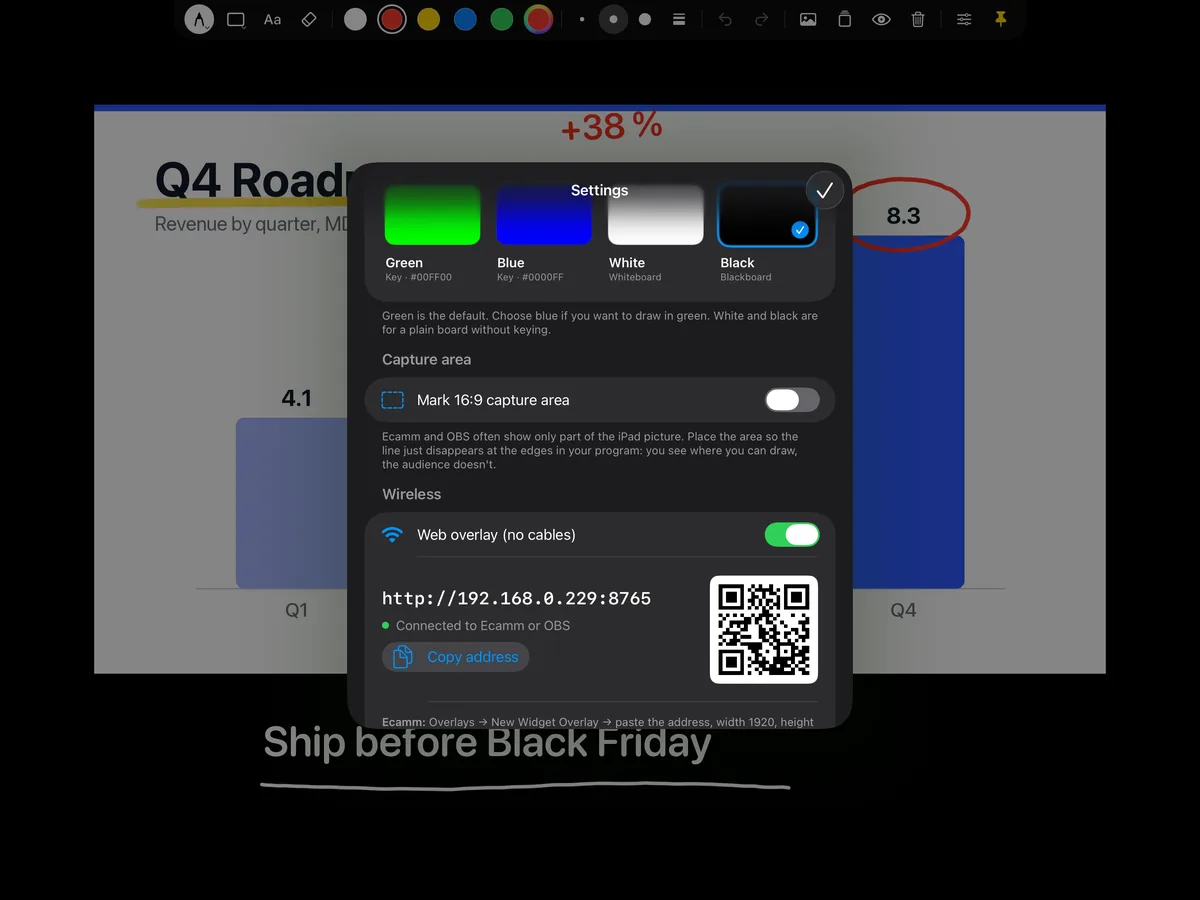
Streaming software often shows only part of the iPad. Overlay Pen marks the area your audience sees with a thin line that is cropped away in the broadcast. Drag and pinch to match it in seconds.
- 16:9 frame that matches your program
- The line is never in the picture
- Never draw half outside the shot again
Nothing to learn.
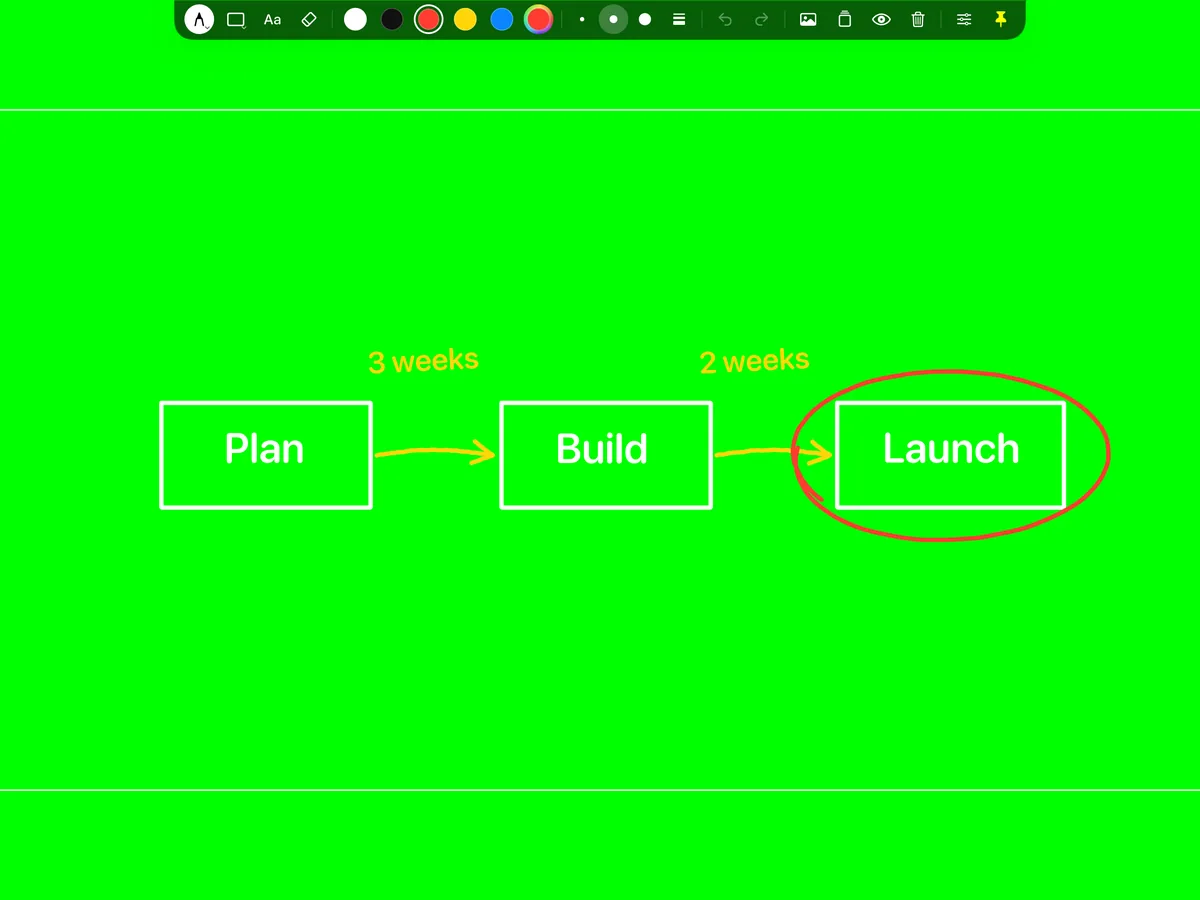
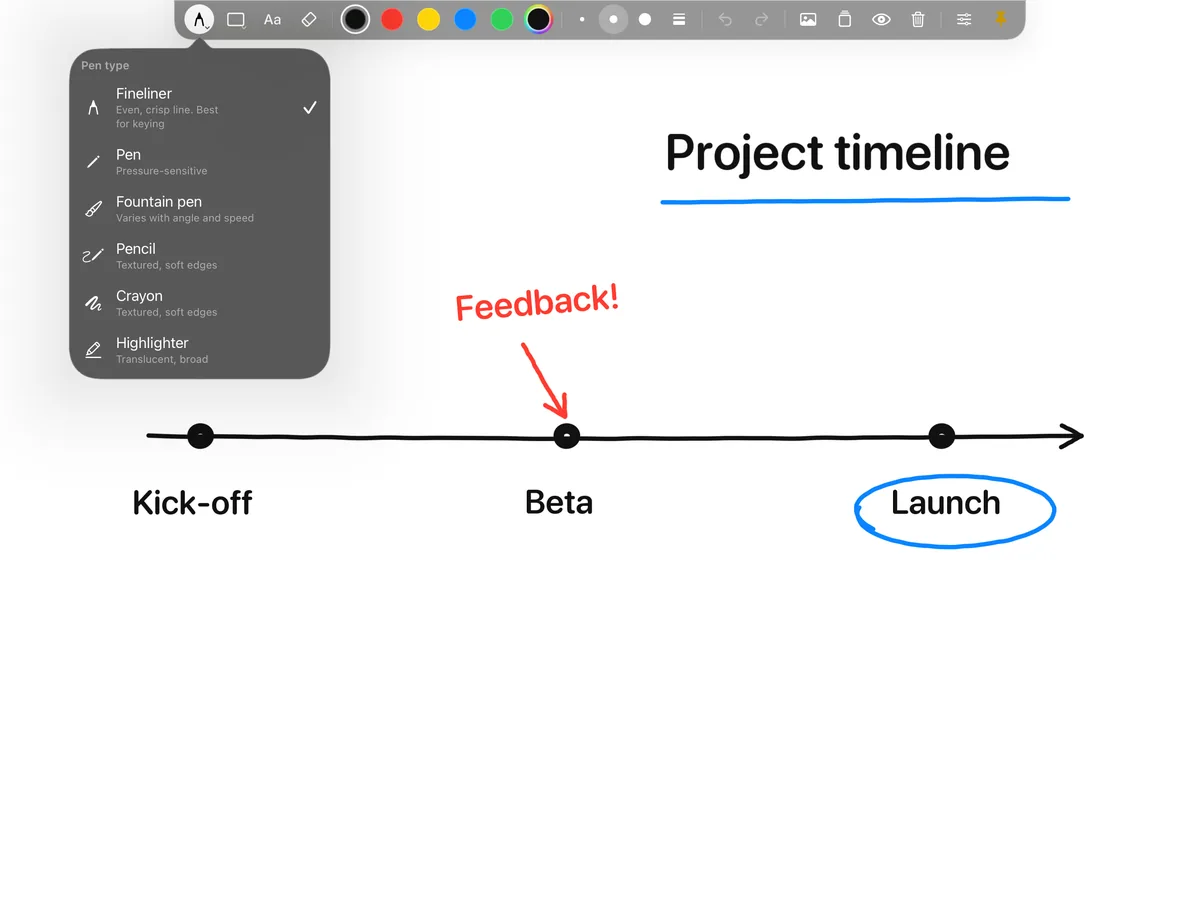
One small palette with pens, colours, shapes and text. It slides away the moment you start drawing and comes back when you hold one finger on the screen.
- Two-finger tap to undo, three to redo
- Six pens, from fineliner to highlighter
- Colours that never vanish in the key
Live in three steps.
The first time takes about two minutes. After that, you just open the app.
Turn on the web overlay
Open Overlay Pen, tap Settings and switch on Web overlay. You get an address and a QR code.
Add it in Ecamm or OBS
Paste the address as a Widget Overlay in Ecamm Live or a Browser Source in OBS, 1920 × 1080.
Pick up the pencil
Draw on the iPad. The ink appears in your stream and meeting, on top of everything else.
Made for everyone who explains on video.
Meetings & presentations
- Circle the number that matters
- Sketch a process while you talk
- Works in Zoom, Teams and Meet via Ecamm or OBS
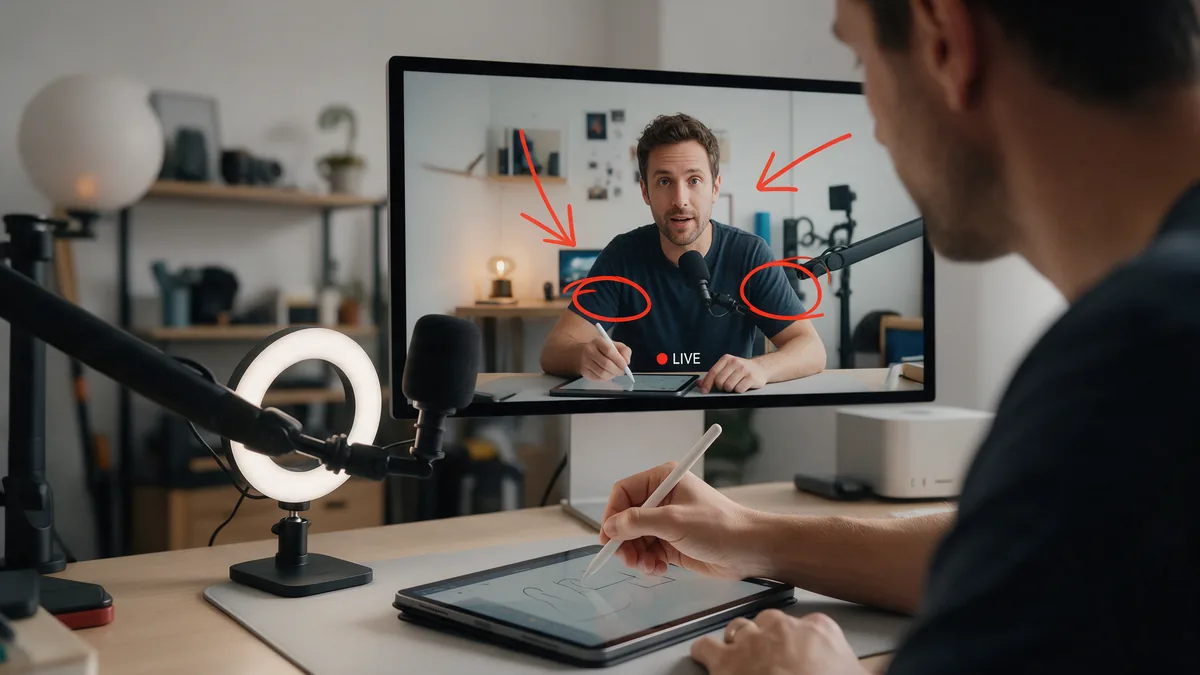
Webinars & live streams
- Transparent layer in Ecamm Live or OBS
- Sharp up to 4K, re-rendered when you zoom
- Palette never in the picture
Teaching & online classes
- Write formulas and sketch diagrams live
- White, black, green or blue board
- Save boards and reopen them next lesson
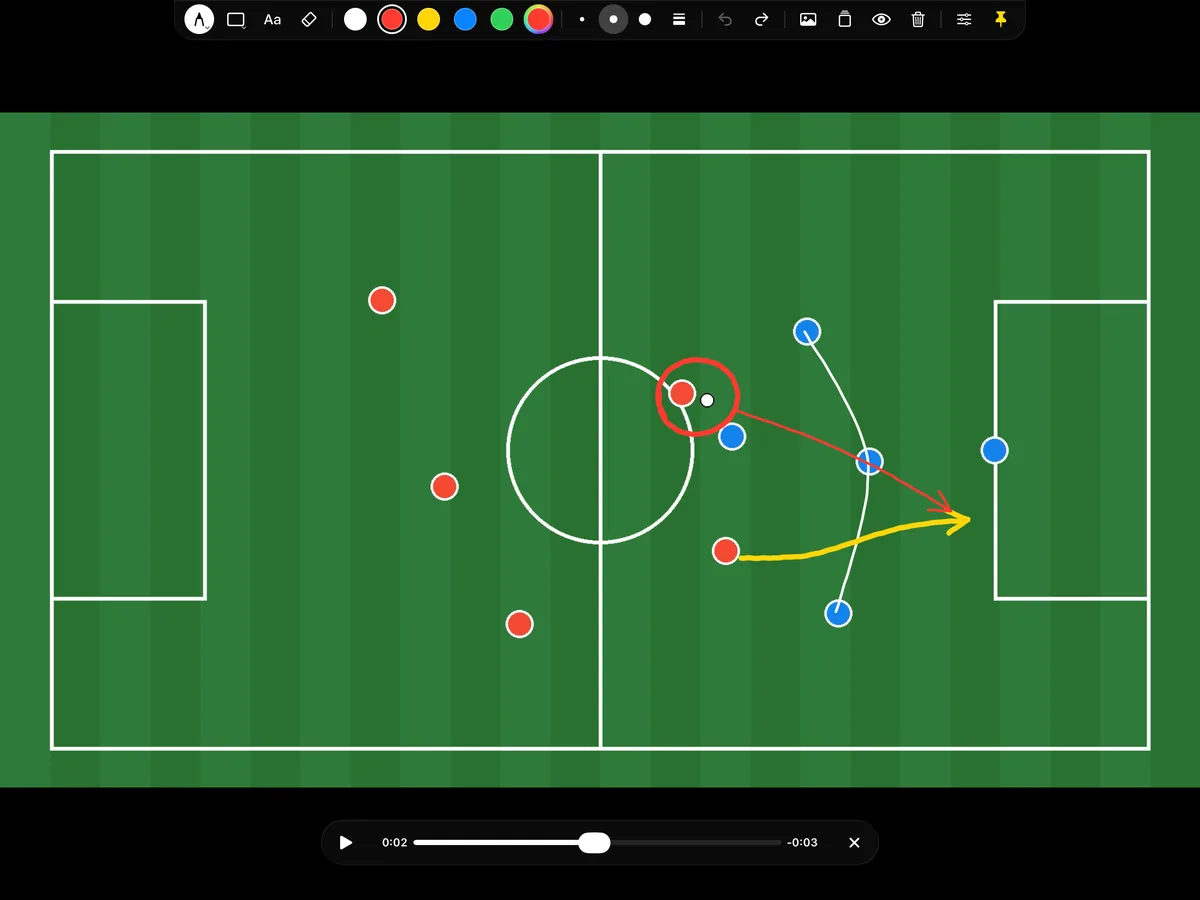
Sports & video analysis
- Open any video from the camera roll
- Drawing pauses, play keeps the drawing
- Scrub to another moment and the board clears
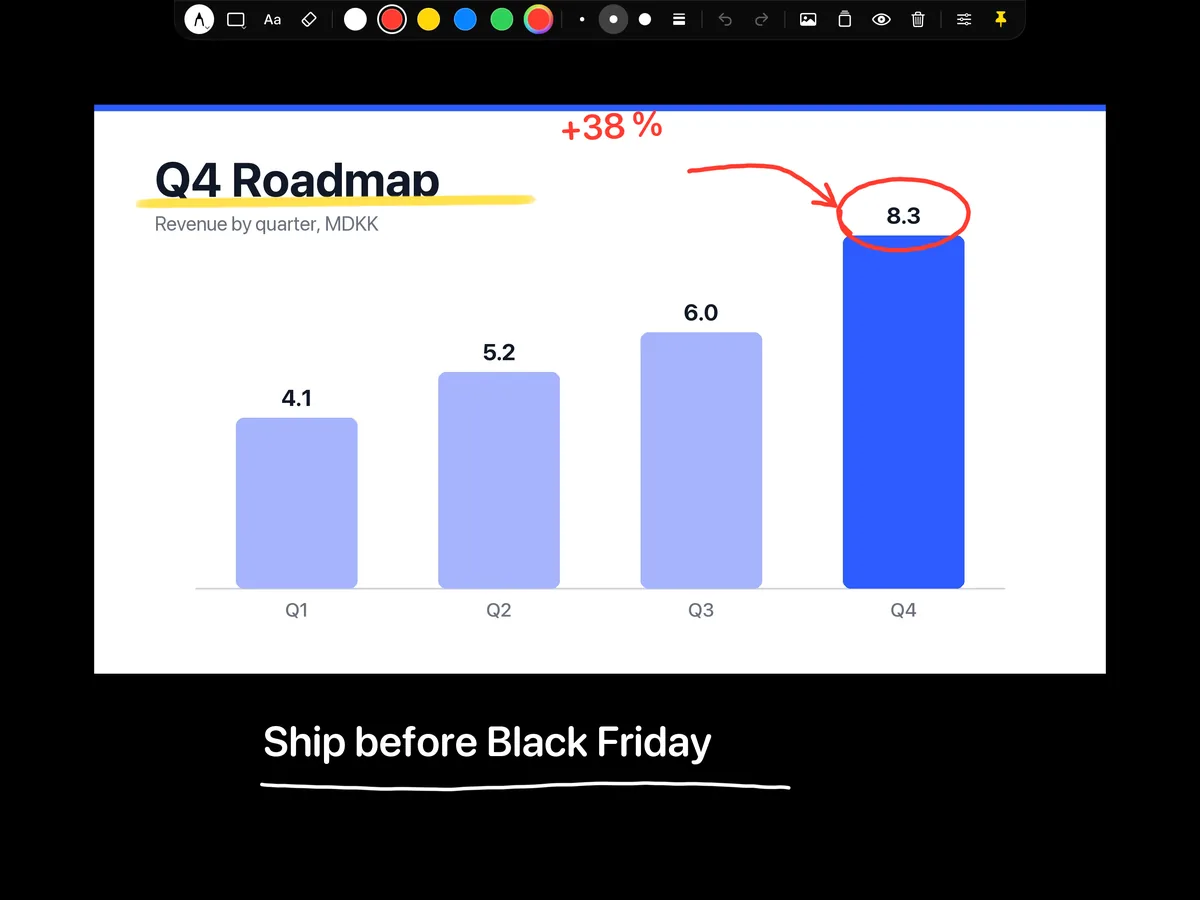
Workshops & sales demos
- Mark up a live screen share
- Boxes, arrows and text in seconds
- Look professional, set up in minutes
Zoom, Teams & Meet
- Draw on your camera in any meeting
- Through the virtual camera in Ecamm or OBS
- Set up once
Small app. Everything you need live.
Six pens
Fineliner, pen, fountain pen, pencil, crayon and highlighter, in three sizes or your own.
Shapes
Lines, arrows, boxes and circles, drawn with the Pencil and perfectly straight.
Text
Type, or write with Scribble. Text moves, scales and rotates like a sticker.
Photos
Put a slide, chart or map on the board and write right on it.
Video
Open a clip, pause, draw the play, play on. Scrubbing clears the board.
Zoom & rotate
Pinch to zoom up to 6× and rotate the board. The output follows.
Drafts
Save a board and open it again in the next meeting or lesson.
Clean HDMI output
An external display gets the drawing without the palette, at full resolution.
Private
No account, no tracking, no cloud. Your drawings stay on your iPad.
Three ways to go live.
| Wi‑Fi web overlay | USB + green screen | HDMI clean output | |
|---|---|---|---|
| Cables | None | USB cable | HDMI adapter + capture |
| Keying | Not needed: real transparency | Chroma key in Ecamm/OBS | Chroma key in OBS or switcher |
| Palette in the picture | Never | Hides while you draw | Never |
| Works with | Ecamm Live, OBS (Mac, Windows, Linux) | Ecamm Live, OBS on Mac | OBS, projectors, hardware switchers |
| Quality | Rendered for the source, up to 4K | iPad screen resolution | Highest mode of the display |
Made to behave on air.
Questions, answered.
What is Overlay Pen?
Overlay Pen is an iPad app that turns iPad and Apple Pencil into a pen for live video. What you draw appears on top of your camera, slides or screen share in Ecamm Live, OBS Studio and, through their virtual camera, in Zoom, Microsoft Teams and Google Meet.
What do I need?
An iPad with iPadOS 17 or later and an Apple Pencil that works with it. For the wireless overlay you also need Ecamm Live (Mac) or OBS Studio (Mac, Windows or Linux) on the same network. Alternatively, connect by USB to a Mac or by HDMI to a capture card.
Does it work with Zoom, Microsoft Teams and Google Meet?
Yes, through Ecamm Live or OBS Studio. They combine your camera and the drawing and pass the picture to the meeting as a virtual camera. Overlay Pen does not plug into the meeting apps directly.
Do I need a green screen?
No. The wireless web overlay sends the drawing with real transparency. The green or blue background is only needed when you connect by USB or HDMI and key the colour out.
Will my audience see the palette or menus?
Not with the wireless overlay or the HDMI output: only the ink is sent. When the iPad screen itself is captured over USB, the palette slides away as you start drawing, and you can place the capture area so it sits outside the picture.
How sharp is the drawing?
The overlay tells the iPad its exact pixel size, and the ink is rendered for it: 720p, 1080p or 4K. When you zoom into the board, the ink is rendered again at the new size.
Pick up the pen.
Overlay Pen for iPad. Plug and play, sharp up to 4K.